
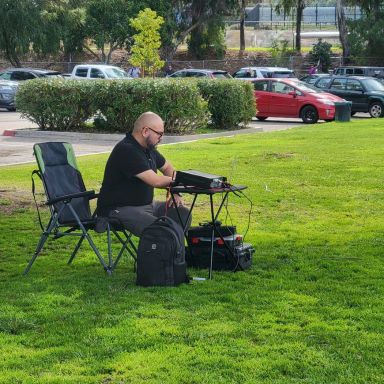

## How to Use and Program a Yaesu FT-891 Radio
The **Yaesu FT-891** is a highly versatile HF/50 MHz mobile transceiver, popular for its compact design and excellent performance across a wide range of frequencies. Whether you're operating on HF for DXing or 6 meters for local contacts, the FT-891 offers powerful capabilities. However, like many radios with robust features, it can take a bit of learning to get the most out of it. This guide will walk you through basic operation, programming memory channels, and some key features of the Yaesu FT-891.
---
### **Basic Operation of the Yaesu FT-891**
Before diving into programming, let's go over some of the key controls to get you started with everyday operation.
#### Powering On and Off
- - **Power On**: Press and hold the **[PWR] button** on the front panel for about 1 second.
- - **Power Off**: Press and hold the **[PWR] button** again for about 1 second.
#### Tuning the Frequency
- - Use the **Main Dial** to tune the frequency. This large knob allows you to easily scroll through frequencies.
- - Press the **[CLAR/VFO-B] button** to switch between VFO-A and VFO-B, which allows you to monitor and switch between two frequencies.
#### Adjusting Volume and Squelch
- - **Volume**: Rotate the **VOL knob** (located above the Main Dial) to adjust the volume.
- - **Squelch**: Rotate the **SQL/RF knob** (beside the VOL knob) to set the squelch level, reducing noise when no signal is present.
#### Switching Bands
- - To switch between bands (e.g., 20 meters, 40 meters), press the **BAND button** and rotate the **Main Dial** to select your desired band.
---
### **Manual Programming of Memory Channels**
The Yaesu FT-891 has 100 memory channels for storing your favorite frequencies, making it easier to switch between them quickly. Here’s how you can manually program these channels.
#### Step 1: Select the Desired Frequency
- 1.
**Set the Frequency**: Use the **Main Dial** to tune to the desired frequency.
- - For example, you might want to set a frequency for 20 meters, such as 14.250 MHz.
**Select Operating Mode**: Press the **[MODE] button** to cycle through the available modes (LSB, USB, CW, AM, FM).
- - For SSB voice communication, USB is typically used on frequencies above 10 MHz, and LSB is used below 10 MHz.
#### Step 2: Set the Desired Operating Parameters
Before saving a memory, adjust any necessary parameters:
- 1. **Clarifier/Shift**: Adjust the clarifier if needed by pressing the **[CLAR] button** and turning the **Main Dial**.
- 2. **Squelch and RF Gain**: Set the squelch and RF gain as needed for the frequency you're operating on.
#### Step 3: Save the Frequency to a Memory Channel
- 1. **Press and hold the [V/M] button** for 1 second**. This enters the memory write mode.
- 2. The display will show an available memory channel (e.g., “M-001”). You can use the **Main Dial** to scroll through available memory slots.
- 3. Once you've selected the desired memory slot, **press and hold [V/M] again** to save the frequency.
#### Step 4: Assign a Memory Tag (Optional)
You can assign a name (tag) to each memory channel for easy identification.
- 1. Press **[FUNC]**, then use the **Main Dial** to select **MEM TAG**.
- 2. Enter the name using the multi-function buttons and dial. You can assign names like "20M USB" or "Local Net."
- 3. Press **[FUNC]** again to save the tag.
---
### **Using Memory Channels**
Once you’ve programmed a few frequencies into the memory channels, switching between them is easy:
- 1. **Press the [V/M] button** to switch from VFO mode to Memory mode.
- 2. Use the **Main Dial** to scroll through your saved memory channels.
- 3. When the desired memory channel is displayed, press **[V/M]** again to operate on that frequency.
---
### **Advanced Features**
The Yaesu FT-891 is packed with features that cater to both casual and advanced operators. Here are a few key features that can enhance your experience.
#### Noise Reduction (NR)
The **NR (Noise Reduction)** feature helps reduce background noise, improving signal clarity in weak conditions.
- 1. Press **[FUNC]**, then use the **Main Dial** to select **NR**.
- 2. Press **[ENT]** to enable or disable noise reduction.
#### Automatic Notch Filter (DNF)
The **DNF** feature automatically removes unwanted carriers (e.g., heterodynes) during voice reception.
- 1. Press **[FUNC]**, then use the **Main Dial** to find **DNF**.
- 2. Press **[ENT]** to turn DNF on or off.
#### Digital Signal Processing (DSP)
The FT-891 has built-in DSP filters that help in improving signal clarity:
- 1. Press **[FUNC]** and use the **Main Dial** to select **DSP** settings.
- 2. You can adjust bandwidth, contour, notch filter, and more to tailor your receiving signal.
#### RF Power Control
You can adjust the output power level to suit different conditions (from QRP low-power operations to full 100W output).
- 1. Press **[FUNC]** and scroll to **RF POWER**.
- 2. Turn the **Main Dial** to adjust the output power level.
---
### **Programming Using a Computer (Optional)**
While the Yaesu FT-891 allows for manual programming, it’s much easier to program using a computer and software such as **CHIRP** or **Yaesu’s ADMS-891 software**.
#### What You’ll Need:
- - **Programming cable** (e.g., Yaesu SCU-17 or another compatible cable).
- - **Software**: You can download **CHIRP** (open-source) or the official **ADMS-891** software from Yaesu’s website.
#### Steps for Programming with Software:
- 1. **Install the software** on your computer and connect the FT-891 using the programming cable.
- 2. **Read from the radio**: Open the software, connect to your FT-891, and download the current settings from the radio.
- 3. **Program Frequencies**: Add frequencies, memory channels, and other settings directly through the software interface.
- 4. **Upload to the radio**: Once you’ve finished configuring the settings, upload them back to the radio.
This method allows you to easily manage multiple memory channels and fine-tune settings without manually inputting everything through the radio’s interface.
---
### **Conclusion**
The Yaesu FT-891 is a powerful and flexible transceiver with features that cater to both casual and advanced operators. With the ability to manually program memory channels, adjust advanced DSP settings, and even use computer software for more detailed configuration, it’s a radio that adapts to many operating styles. Whether you're chasing DX contacts on HF or setting up for mobile operation on 6 meters, the FT-891 will serve you well with its versatility and robust feature set.
Comments
to comment.